

NAM profiles Logic Pro workflow: metal tone in 2026
Instead of rebuilding a high-gain guitar chain every time you open Logic Pro, load a NAM profile on a clean DI track, add a cabinet IR if the capture needs one, then save the channel strip. This NAM profiles Logic Pro workflow takes you from an input-ready session to a metal tone you can record, double-track and judge against drums in 2026.
- For a 2026 NAM profiles Logic Pro workflow, record a clean DI, load a NAM amp profile, check cabinet handling and save the chain.
- Oracle Sound NAM profiles suit metal producers who want high-gain starting points; the DI and cabinet choices still determine the result.
- Keep the recorded DI clean so you can change the profile without replaying the part.
- Judge palm mutes against drums, not just through soloed headphones.
Why this matters
A distorted guitar can sound huge alone and disappear when the kick, bass and cymbals enter. The fix is not automatically more gain. Start with a clean, unclipped DI; confirm whether the NAM capture includes a cabinet; then adjust the sound while the full arrangement plays. For help with the model-loading stage, see the Oracle Sound NAM profile connection guide.
Oracle Sound NAM profiles are best for metal producers and recording engineers who want a high-gain amp starting point they can shape inside Logic Pro. Their advantage is a choice of guitar tone profiles suited to heavy production. Their limitation is just as important: a profile does not fix weak DI input, the wrong cabinet treatment or loose double-tracking.
Before you start
- Get a clean guitar input. Plug the guitar into an instrument-capable interface input, select that input on a mono audio track and check that hard picking does not clip the interface or Logic Pro input meter. Record the DI, not a permanently processed guitar sound.
- Install a NAM player that Logic Pro can load. Logic Pro hosts Audio Units, so confirm that your chosen NAM player has an installed, recognised Audio Unit version. A standalone app or a plugin in another format is not enough for this chain.
- Put the profile and cabinet files where you can find them. Identify whether your chosen capture represents an amp or pedal that still needs a cabinet IR, or a signal chain that already includes cabinet sound. Adding a second cabinet stage to a full-chain capture is an easy way to lose top end before you reach the mix.
This 2026 guide uses one guitar DI and one NAM amp path. A separate cabinet IR loader is needed only when your selected profile and NAM player do not already provide the required cabinet stage. The controls inside NAM players differ, so use the file browser and output controls in the player you installed rather than looking for a button name that belongs to another plugin.
Choose the DI input and project settings
- In Logic Pro, create a New Audio Track and choose the mono input connected to your guitar. Leave software monitoring under control of one system: Logic Pro or your interface's direct monitor, not both at once.
- Open the project's audio settings and choose a sample rate your interface supports. 48 kHz is a workable session choice; keep the same project rate through tracking and editing rather than changing it to chase a different tone.
- Arm the guitar track with Record Enable. Turn on Input Monitoring if you need to hear the processed chain through Logic Pro. Play your hardest palm mutes and lower the interface gain if the input clips.
- Record a short section with sustained notes, fast picking and muted hits. Play it back before inserting the amp model. Check for noise, clicks and clipping in the DI itself.
Expected result: you have a clean mono guitar recording that plays back at a stable level. Keep this track editable. Its dry signal lets you change NAM profiles and cabinet choices in 2026 without recording the performance again.
Load the NAM profile
- On the DI track, open an Audio FX insert and select the Audio Unit version of your installed NAM player. If it does not appear, stop here and check the plugin troubleshooting section below; an audio effect elsewhere in the chain cannot replace a missing NAM host.
- In the NAM player, open its model-file browser and select a compatible
.namamp capture. Start with an amp capture rather than stacking several gain stages. If the pack includes pedal captures, decide whether one belongs before the amp model instead of inserting it after the cabinet. - Match the processed output against the bypassed signal by ear. Do not interpret a louder playback as proof that a profile is better. Back off input or output level wherever a plugin meter clips.
- Play the DI through the NAM player. Listen to note separation on the fastest part, then listen to the low strings during a sustained chord. Those passages expose different problems.
Expected result: the DI now drives a repeatable amp capture on playback. If the tone is extremely sharp or fizzy, do not immediately cut treble; first check whether the capture needs a cabinet IR. If it sounds muffled, check whether a cabinet stage has been applied twice.
For a metal starting point, two relevant Oracle Sound options are TONAL BRUTALITY METAL GUITAR TONE NAM PROFILES and TONECTOMY BRUTAL GUITAR TONE NAM PROFILES. Choose by the amp character that works against your bass and drums, not by which profile sounds loudest alone.
| NAM profile pack | Best for | Strength | Trade-off |
|---|---|---|---|
| TONAL BRUTALITY METAL GUITAR TONE NAM PROFILES | Trying different high-gain amp and pedal directions | Its stated source list spans several high-gain amp and pedal types. | More choices mean more time comparing captures before committing to a part. |
| TONECTOMY BRUTAL GUITAR TONE NAM PROFILES | Building an aggressive high-gain starting point | Its stated source list includes Bogner Uberschall, Diezel VH4 and ENGL Powerball. | A heavy starting tone still needs DI, cabinet and mix checks. |
The comparison is about the supplied pack descriptions, not a claim that one capture beats another in your session. For a 2026 Logic Pro metal session, settle on one profile against the drums before refining EQ. Switching captures while editing the performance makes it harder to hear what actually improved.
Configure the cabinet and mix chain
- Determine what the selected NAM capture represents. If it is an amp-only capture, put a suitable cabinet IR stage after the NAM player, using a cabinet function in the player when available or a separate IR loader. If the capture already includes a cabinet, do not add another one by default.
- Set the starting order to DI, optional pedal capture, amp capture, cabinet IR, corrective EQ. Treat that as a signal-chain example, not a requirement to fill every slot. Remove any stage that duplicates part of a full-chain capture.
- With the drums and bass playing, try a high-pass filter starting around 80 Hz on the guitar channel. Move it while listening to palm mutes and the bass together; leave enough low-mid weight for the riff to speak.
- If pick attack masks the cymbals or vocals, find the offending range with a narrow EQ move, then widen or reduce the cut until it sounds natural. Do not copy an EQ curve from another guitar, tuning or cabinet IR.
- Save the working chain as a Logic Pro channel-strip setting once the routing, NAM file and cabinet stage are correct. Reopen it on a test track and confirm that the model and IR files still resolve.
Expected result: the recorded DI plays through an amp-and-cabinet path that stays intelligible when the rest of the track is on. The diagram shows where each stage sits; it does not imply that every capture needs every stage.
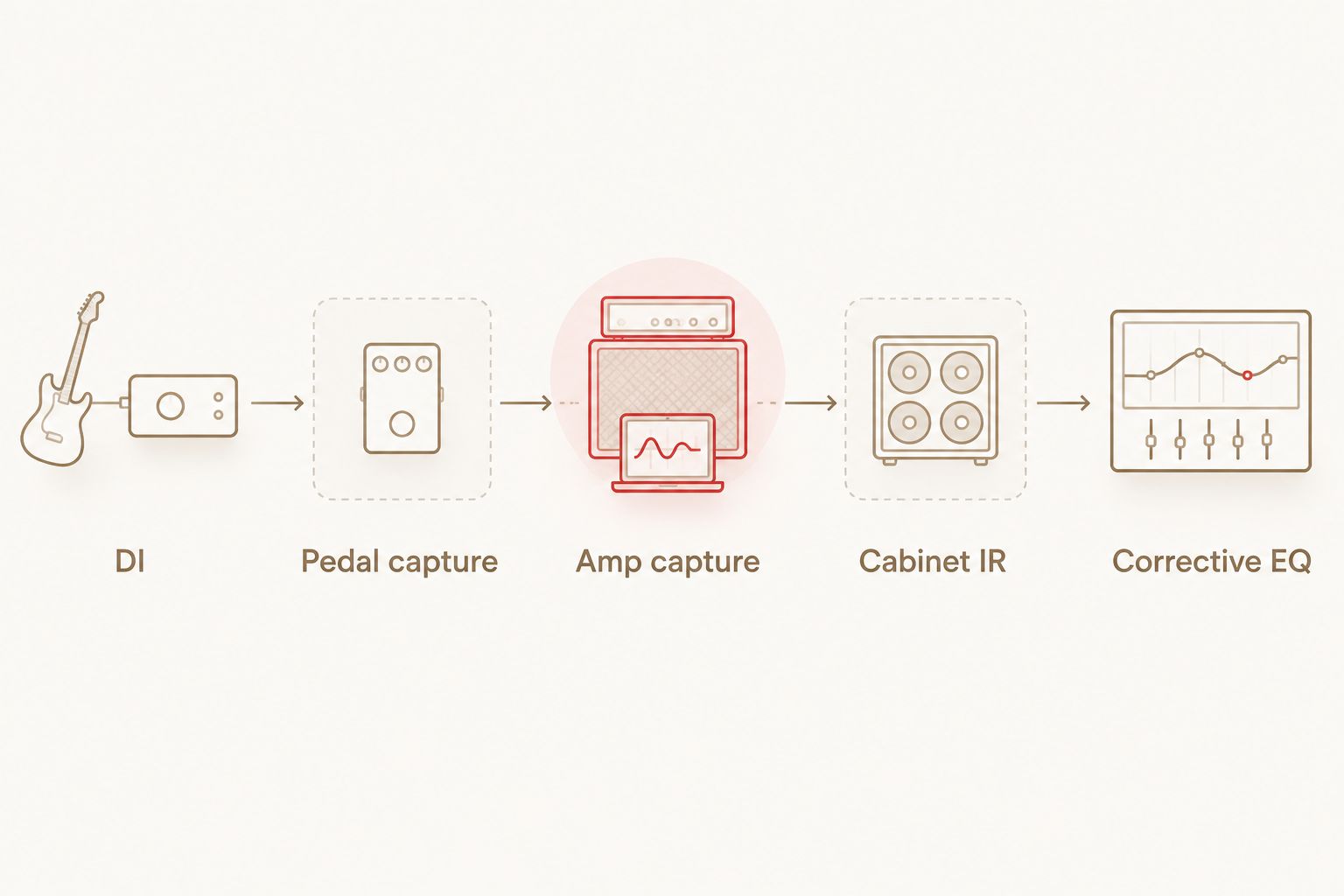
A useful 2026 check is to bypass only the cabinet stage while a riff plays. A dramatic return of brittle high end usually tells you that stage is doing essential work; a sudden improvement in clarity tells you to inspect whether the capture already contains a cabinet. Make the decision from the capture details and the full mix, not that test alone.


Record a second guitar pass
A second take is a new performance, not a copy of the first DI. Record it on another mono track, use the same approved chain as a baseline, then pan the two performances to opposite sides. This separates the rhythm guitars without turning one player's timing errors into duplicated errors.
Keep both DI tracks available. If one side seems harsher, check the performance and input level before assigning it a different profile. Different captures can create contrast, but a change that sounds exciting in solo can shift the stereo balance in the chorus. Compare the guitars with bass and drums running at normal working levels.
For a dense 2026 metal arrangement, leave a centre lane for kick, snare, bass and any lead part that needs it. Tight editing matters more than adding gain. If the left and right chugs hit at different moments, an amp-profile swap will not make the riff lock to the drums.
Use a different profile when the arrangement changes
A verse and chorus do not have to share the same guitar sound. Duplicate the DI track, keep its original performance, and give the duplicate a different NAM chain only when you need a separate printed or arranged section. Mute the unused version in each section so you do not hear two amp paths reproducing the same performance together.
This variant suits a track that needs a narrower verse and a broader chorus, or a distinct lead sound above the rhythm guitars. Compare the alternate profile at matched listening levels. The better profile is the one that makes the part clearer in context, not the one that wins an isolated loudness check.
Save a separate channel-strip setting for each approved chain and name it for its role in the session. In a 2026 revision, you can return to the clean DI, swap the model or IR, and check whether the new chain still works through every section that uses it.
Troubleshooting
- The NAM player does not appear under Audio FX. Confirm that you installed its Audio Unit version, not only a standalone app or another plugin format. Restart Logic Pro after installation and check Plug-in Manager for a failed or unavailable plugin.
- The guitar is audible twice or feels delayed while tracking. Check whether interface direct monitoring and Logic Pro Input Monitoring are both active. Choose one monitoring path, then check your audio buffer if the software-monitored path still feels slow.
- The sound is fizzy or harsh. Check whether an amp-only NAM capture is playing without a cabinet IR. Also confirm that the DI and plugin output are not clipping before reaching for EQ.
- The tone sounds unusually dark. Inspect the capture details and signal chain for two cabinet stages. Bypass one stage at a time; leave the arrangement playing while you decide.
- A saved session cannot find a model or IR. Locate the original files and reload them in their respective plugins. Keep a stable folder for session assets before moving or archiving the project.
Customize your workflow
Once the core chain works, build a small set of session settings around jobs rather than genre labels: a rhythm chain that leaves space for bass, a lead chain that stays audible at the centre, and an alternate chain for sections that need contrast. Keep the original DI on each track. That is the part you cannot recover by changing a plugin preset.
For 2026 recording sessions, audition a new profile with the same DI passage, cabinet handling and listening level as the existing chain. Change one stage at a time. If a different amp capture improves note separation but thins the riff, test the cabinet pairing before adding more distortion. If the riff only works while soloed, bring back the drums and bass and restart the decision there.
FAQ
Can you use NAM profiles in Logic Pro?
Yes, you can use NAM profiles in Logic Pro through a compatible Audio Unit NAM player. Load the .nam file inside that plugin on a guitar DI track.
Do NAM profiles work without a cabinet IR?
It depends on what the selected capture contains. An amp-only capture needs cabinet handling for a conventional miked-cabinet sound; a capture that includes a cabinet should not automatically get another cabinet stage.
Should you record the DI or the processed NAM sound?
Record a clean DI if you want to change the NAM profile later. Monitor the processed chain while playing, but keep the original performance available for editing and tone changes.
Where does a pedal capture go in a NAM metal chain?
Put a pedal capture before an amp capture when you want it to shape the signal entering the amp. Check the files in your pack before adding one, because a full-chain capture can already include that effect.
Why does a NAM profile sound harsh in Logic Pro?
First check for a missing cabinet IR and clipping at the interface or plugin output. Judge EQ only after the capture and cabinet stages are correct.
Can you double-track guitars with the same NAM profile?
Yes, you can use the same NAM profile on two separately recorded DI performances. Pan the takes apart and check timing against the drums before trying different amp sounds.
Is TONAL BRUTALITY or TONECTOMY better for metal guitars?
TONAL BRUTALITY is the better starting shortlist when you want to compare several stated high-gain amp and pedal directions; TONECTOMY is another high-gain option with a different stated source list. Audition either against your bass and drums before committing.
One last thing
Save the clean DI as carefully as the finished tone. In a 2026 Logic Pro session, the DI lets you change a profile, correct a cabinet mismatch or rebuild the chain without asking for another guitar take. A saved amp setting cannot repair a clipped input or an out-of-time performance.