

Slamp Ableton Reamping: Keep the DI, Print the Tone (2026)
Instead of rerecording every guitar part when the tone changes, keep a clean DI in Ableton Live and route it through SLAMP. You can adjust the amp simulator while writing, then record the processed sound to a separate audio track when the part is ready.
- For slamp ableton reamping, record a clean guitar DI first, then place SLAMP on the DI track.
- Oracle Sound's SLAMP is best for metal producers who want to change guitar tone without replaying the part.
- Keep the DI untouched; record SLAMP's output to a separate track before disabling the live processing.
Why this matters
A guitar part and its amp tone are different decisions. If you record only the processed sound, changing the tone later means replaying the part or working around the existing processing. A DI preserves the performance before amp simulation, so you can hear the same take through different settings.
For a 2026 metal, hardcore or punk session, that separation is useful while the drums, bass and guitars are still changing. A tone that works in isolation can crowd the mix. Reamping in Ableton Live lets you adjust the processing against the actual track without asking the guitarist to repeat a take.
Oracle Sound's SLAMP is best for producers reamping a saved guitar DI into a slamming death metal tone in Ableton Live. It is an amp simulator, not a replacement for a clean DI: once a take has been recorded with distortion baked into the file, putting SLAMP after it does not restore the original pickup signal.
Before you start
- Get a clean guitar recording. Use a guitar input suitable for an instrument-level signal on your audio interface. If the part already exists, locate the unprocessed DI file rather than an exported amp-sim track.
- Make SLAMP available to Live. Install the plugin using the format supported by your system, then confirm it appears in Live's Plug-Ins browser. Plugin formats and installation paths depend on your system; do not assume a missing plugin will appear inside Audio Effects.
- Check monitoring before recording. Listen to the processed track through Live, but record the original guitar onto a separate DI track. If you monitor the direct interface signal and Live at the same time, you will hear two paths instead of one clear guitar sound.
The mid-setup trap is printing an already distorted guitar track and calling it a DI. A DI must be captured before SLAMP or any other amp processing. In a 2026 project, label the original track clearly before adding effects; the name is less important than preserving the source audio.
Capture your dry guitar track
- Create an audio track in Ableton Live and name it Guitar DI. In the track's Audio From chooser, select the interface input carrying your guitar signal.
- Check that the guitar reaches Live without an amp simulator, distortion plugin or other tone-shaping effect on the recording path. Arm the DI track with its Arm Recording button.
- Set monitoring so you hear the intended guitar path. Use Off if you are monitoring through your interface, or Auto if you are monitoring the armed track through Live. Avoid listening to both paths together.
- Play the loudest section and watch the track meter. If the input hits 0 dBFS, reduce the interface input gain and record again; lowering the track fader after clipping does not repair the recorded signal.
- Record the part. Play back the take with the amp processing bypassed and confirm the file contains a clean guitar performance.
Expected result: Guitar DI holds an editable, unprocessed take. It will sound thinner and less finished than an amp tone; that is the source you want for reamping. Save the project before building the processed path.
If the DI has already been recorded elsewhere, import that audio file onto Guitar DI instead. Check its start position against the drums before touching the amp settings. A timing offset in the source take will still be there after reamping.
Configure the SLAMP processing path
- Select Guitar DI and find SLAMP in Live's Plug-Ins browser. Add it to the track's device chain so Live sends the recorded DI through the amp simulator during playback.
- Start with the plugin's current settings and play the guitar against the drums and bass. Change one control at a time inside SLAMP rather than making several changes before you can hear what each one did. Plugin control names depend on the installed version; use the labels shown in your instance.
- Level-match as you adjust the sound. A louder setting can seem better even when it makes the guitars harder to place. Compare the processed guitar at a useful listening level in the full arrangement, not only in solo.
- If you add other processing in Live, make the signal order deliberate: Guitar DI, then any pedal processing, then SLAMP, then any subsequent mix processing. Keep each device on the path only if you intend it to affect the reamped recording.
- Duplicate the DI track before trying a substantially different chain. Mute the unused path while listening so the same performance is not doubled unintentionally.
Expected result: the performance stays on Guitar DI, while SLAMP changes what you hear on playback. You can revise the amp sound without changing the notes or timing. For a 2026 mix, this is the point to check palm mutes against the kick and bass: the right setting is the one that leaves each part intelligible together.
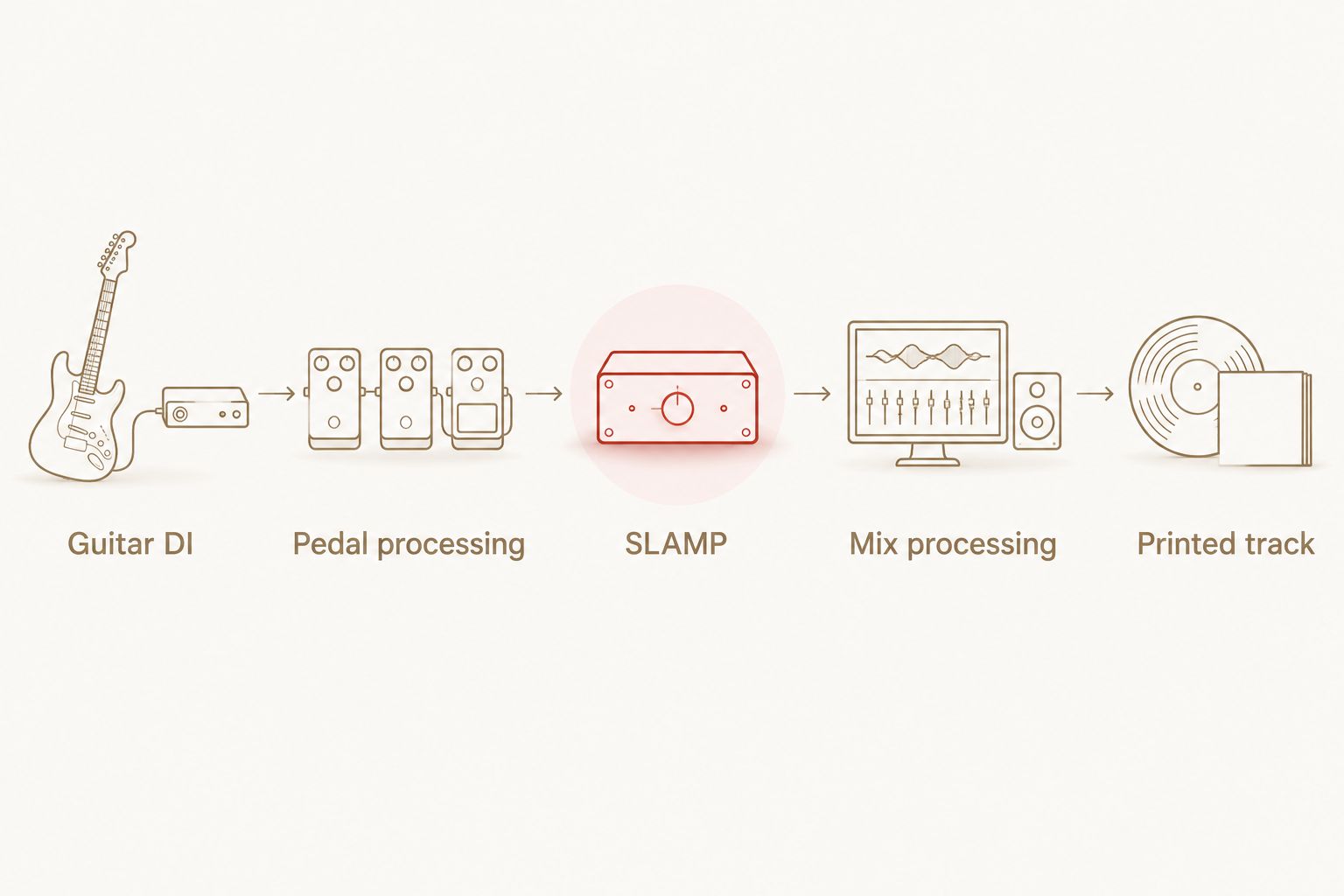
Print the reamped guitar to a new track
Printing creates an audio recording of the sound you are hearing through the plugin chain. Keep the original DI so a later revision does not require a new performance.
- Create another audio track and name it Guitar Print. Leave the SLAMP device on Guitar DI; do not insert a second instance on the print track.
- On Guitar Print, set Audio From to Guitar DI. Choose Post FX as the source point so the new track receives the DI after the plugin chain rather than the dry input. Confirm that the sound arriving on Guitar Print changes when you bypass SLAMP on Guitar DI.
- Set Guitar Print monitoring to Off and arm it. This lets the track record the processed signal without also passing a second monitored copy to the master output.
- Start Arrangement recording early enough to include the beginning of the guitar part. Record through the end of the section, then stop and play back the new clip.
- Mute Guitar DI and listen to Guitar Print alone. Compare the start, ending and pauses with the original take. If a phrase is missing, fix the record range or routing and print it again.
Expected result: Guitar Print contains an audio clip with the SLAMP processing recorded into it. Guitar DI remains available for further tone changes. Once the print checks out, keep the DI muted during normal playback so you do not hear two copies of the same performance.
| Workflow | Best for | Advantage | Limit |
|---|---|---|---|
| Live SLAMP processing on the DI | Testing tones while arranging | Change the processing without rerecording | The sound still depends on the active plugin chain |
| A separate reamped audio print | Editing or mixing a chosen sound | Hear the recorded result without the live chain | Changing the amp tone means making another print |
For a 2026 collaboration, retain both tracks in the project. The print shows the chosen sound; the DI leaves the performance available for another pass. Neither track replaces the other.
Reamp the same DI when the arrangement changes
A second pass is useful when the first guitar sound no longer fits after you change the drums or bass. You do not need a second guitar performance. Reuse the clean DI and record a new print, then compare the results at matched listening levels.
- Leave the original Guitar Print untouched and create a new audio track for the alternate print. Give it a name that distinguishes the sound or song section rather than overwriting the previous clip.
- Unmute Guitar DI and revise the SLAMP chain while the full arrangement plays. If you need different settings for a breakdown, make that decision in context instead of assuming the verse setting will fit.
- Set the new track's Audio From to Guitar DI and its source point to Post FX. Set monitoring to Off, arm it and record the revised section.
- Mute Guitar DI again. Solo the prints one at a time for a first check, then compare them with drums and bass playing. Keep the version that serves the section; archive the other rather than stacking identical takes by accident.
Expected result: you have two processed versions of one performance and one unchanged DI. This 2026 workflow supports a tone revision without introducing a new pick attack or timing difference from a rerecorded take.
Troubleshooting SLAMP reamping in Ableton Live
SLAMP does not appear in the browser. Check the Plug-Ins browser rather than Audio Effects. Confirm that the installed plugin format is enabled in Live's plugin settings, then use Rescan. If it still does not appear, check that the installed format is compatible with your system and Live installation.
The print sounds like the dry DI. On Guitar Print, check Audio From and its source point. Choose Guitar DI and Post FX, then bypass SLAMP briefly: the signal arriving at the print track should audibly change. If it does not, verify that SLAMP is actually on the source track's active device chain.
The guitar sounds doubled or phasey while recording. Check for simultaneous interface direct monitoring and Live monitoring. Also confirm that Guitar Print monitoring is Off while you record from the processed DI track. Monitor one intended path, not multiple copies of the same guitar.
The printed clip is silent. Confirm that Guitar Print is armed, its Audio From source is the playing DI track, and the selected source point carries audio. Watch the print track's input meter before recording another pass. A moving meter identifies a live route; a silent meter means the issue is upstream of the clip.
The print clips even though the DI did not. The DI meter only tells you about the input recording. Check levels after SLAMP and any following devices, and lower the level at the point causing the overload before printing again. In a 2026 session, keep the clean take: the fix belongs in the processing path, not in another guitar performance.
Customize your workflow
Use one DI per distinct performance. If you double-track a riff, record the second performance as its own DI; duplicating one clip does not create the timing and articulation differences of another take. Process each DI separately and label its print so you can tell which take it belongs to.
When you want another high-gain starting point, compare sounds against the same riff and arrangement rather than against different performances. The high-gain NAM profile guide covers another guitar-tone workflow, but NAM profiles require a suitable profile loader; a profile file is not the same thing as inserting an amp-sim plugin on an audio track.
Keep the reamping session reversible: preserve the clean take, label every print and mute unused paths. Oracle Sound's SLAMP belongs on the processing path, while the DI remains your source for the next tone decision.
FAQ
How do I set up slamp ableton reamping?
Record or import a clean guitar DI, insert SLAMP on its Ableton Live audio track, and route that track's Post FX output to a separate recording track. Keep the DI when you print the processed sound.
Do I need to rerecord guitar to change the SLAMP tone?
No, a clean DI lets you change SLAMP settings without replaying the part. If you recorded only an already distorted guitar signal, you do not have the original dry performance for true DI reamping.
Should SLAMP go on the DI track or the print track?
Put SLAMP on the DI track's processing chain and record its Post FX output onto the print track. Putting a second instance on the print track can process an already reamped signal again.
Why does my reamped guitar sound doubled in Ableton Live?
You are hearing more than one monitoring or playback path. Turn off monitoring on the print track while recording and check whether interface direct monitoring is also active.
Can I change the SLAMP sound after printing it?
Yes, if you kept the clean DI and the SLAMP processing chain, you can revise the settings and make a new print. The existing audio print does not update when you change the plugin.
Is a NAM profile the same as SLAMP in Ableton Live?
No, a NAM profile is a tone profile used with a suitable loader, while SLAMP is described as an amp simulator. Check the required software for a profile before adding it to a session.
What should I check before sharing a reamped guitar session?
Play the printed guitar track with the DI muted and confirm the clip covers the full part. Keep the DI in the project if the recipient needs the option to change the tone.
One last thing
Check the print with SLAMP bypassed and the DI muted. If you still hear the intended processed guitar, the sound is in the recorded clip rather than coming only from a live plugin. That quick test matters more than the track name in any 2026 Ableton Live reamping session.