

Drum MIDI Cubase Groove Agent: Working Setup (2026)
Instead of programming every kick, snare and fill by hand, drag Oracle Sound's Modern Metal/Hardcore drum MIDI pack onto a Cubase instrument track loaded with Groove Agent, then match the MIDI notes to the kit pads. That gets a playable drum part into your session; note mapping and timing are the two checks that make it usable.
- For drum midi cubase groove agent sessions, Oracle Sound is best for metal and hardcore producers who want editable grooves.
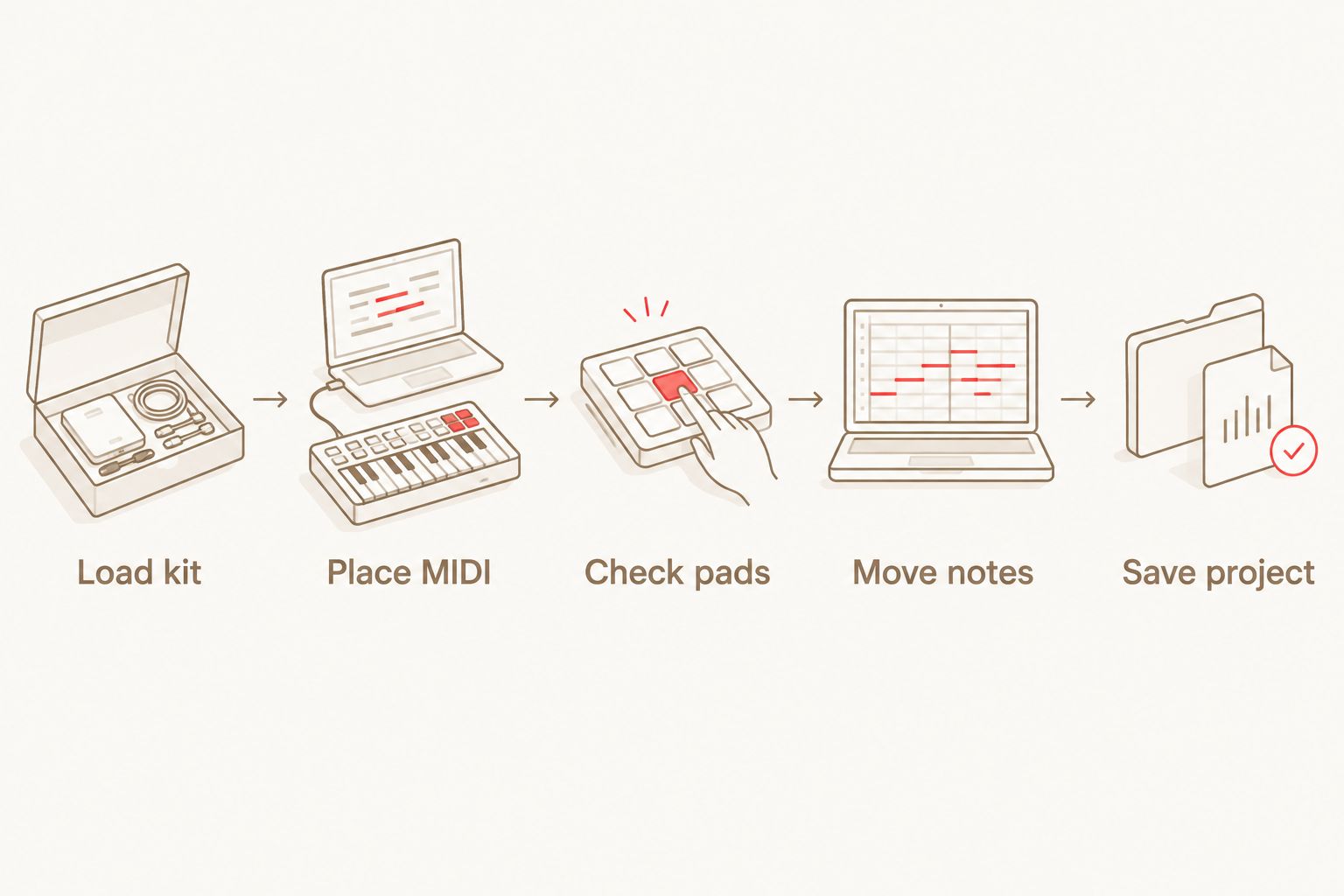
- Load a Groove Agent kit, place the MIDI on its instrument track, then check kick, snare and cymbal notes.
- If the groove plays the wrong pads, remap its notes; changing the kit alone does not guarantee a match.
- Set the Cubase project tempo before arranging imported grooves, then audition fills against your guitars.
Why this matters
A MIDI groove contains note positions, pitches and velocities. It does not contain drum audio. Groove Agent supplies the sounds, while the MIDI part tells its pads when to play. If a kick note lands on a tom pad, the file has imported successfully but the performance will sound wrong.
Oracle Sound drum MIDI is best for producers who want editable metal, hardcore and punk parts inside Cubase rather than finished drum audio. The trade-off is setup: you still need a kit that suits the song and a note layout that triggers the intended drums. In a 2026 session, checking those two things before editing the arrangement saves you from fixing every chorus later.
Before you start
- Have Cubase and Groove Agent available in your installation. Create or open a project where you can add an instrument track. The exact Groove Agent name shown in the instrument selector depends on what is installed.
-
Extract your Oracle Sound drum MIDI pack and locate a
.midfile. Keep the source file untouched so you can return to it after editing a copy in Cubase. - Choose a kit before importing the groove. The non-obvious gotcha is note mapping: a MIDI file can play without errors while triggering the wrong Groove Agent pads. Do not assume that a mapping supplied for another drum instrument matches the kit you loaded.
Set up your Groove Agent instrument
- In Cubase, open Project > Add Track > Instrument. Select Groove Agent or Groove Agent SE, whichever appears in your installation, then choose Add Track.
- Open the instrument window from the new track and load a drum kit. Trigger its kick, snare and cymbal pads directly before you import MIDI; confirm you hear the sounds you expect.
- Set the project tempo and time signature for your song. If you are sketching a straight 4/4 part, count 4 beats per bar while you listen to the kit and your guitar guide track.
- Name the instrument track for its role, such as drums, so you can identify it when the project contains multiple instruments. Leave the track unmuted and check that its output reaches your main mix.
Expected result: Clicking or playing the kit's pads produces drum audio, even though the Cubase track does not yet contain a MIDI part. If the pads make no sound, fix the instrument or audio output before touching the groove file.
Place the drum MIDI on the instrument track
- Find a groove's
.midfile in your extracted pack. Drag it from your file browser into the arrangement onto the Groove Agent instrument track, at the bar where the part should begin. - If Cubase offers to import tempo information from the MIDI file, decide which tempo should control the session before accepting the change. For a song already tracked to a click, keep the existing project tempo and check the imported part against it.
- Confirm that a MIDI part appears on the Groove Agent track. Press Play and listen to one full phrase rather than judging the first hit alone; a fill can expose missing tom or cymbal notes that a basic beat does not.
- Double-click the MIDI part to open the Key Editor. Check that note events appear and that their timing falls where you expect against the Cubase bar grid.
Expected result: The arrangement shows a MIDI part on the instrument track, and Groove Agent plays when the transport crosses it. A visible MIDI part with no drum audio points to routing, kit loading or note mapping—not to an empty groove.
Do not mistake a separate MIDI track for the instrument track. A standalone MIDI track also works when its output is routed to Groove Agent, but placing the file directly on the loaded instrument track gives you fewer routing settings to check during this 2026 setup.
Match MIDI notes to Groove Agent pads
- Solo the drum track and play a section with a clear kick-and-snare pattern. Listen for obviously misplaced sounds: a low hit playing a tom, a backbeat playing a cymbal, or a silent expected hit.
- Open the MIDI part in the Key Editor. Select a note that plays the wrong sound, then audition the destination kick or snare pad in Groove Agent. Identify the MIDI note that triggers that destination pad in your loaded kit.
- Move a copy of the test note to the destination pitch and play the phrase again. Once it triggers the correct sound, move the other notes serving the same drum to that pitch. Repeat for the snare, hi-hat, toms and cymbals actually used by the groove.
- Check velocities after moving notes. Velocity affects how a kit responds; preserve the groove's accents unless you deliberately want to rewrite the performance.
- Save a working Cubase project or track preset after the mapping plays correctly. Keep your extracted MIDI files unchanged; the corrected arrangement remains editable in the project.
Expected result: The groove plays the intended kit pieces throughout the phrase. A kit can use a different note layout from another kit, so repeat the pad check whenever you change kits.
For reference, General MIDI drum notation commonly assigns note 36 to bass drum, 38 to snare and 42 to closed hi-hat. Those numbers are a reference, not a promise about your Groove Agent kit or Oracle Sound file. Check the pad that actually sounds when each note plays. Cubase and other music software can display different octave names for the same MIDI note number, so use the number rather than a C-label when comparing mappings.
If you regularly change kits, decide whether to edit the MIDI part or maintain a Cubase drum map for your preferred layout. Editing notes is direct for one song; a drum map keeps the naming and note assignments visible across repeated work, but requires its own setup and checking for each kit. Neither approach changes the fact that the kit supplies the audio.
Build a second groove from the same kit
Once the first part plays correctly, use the same instrument track for an adjacent verse, chorus or breakdown groove. This variant avoids loading another instance of Groove Agent just to audition a different MIDI part.
- Keep the working kit loaded and place another
.midfile on the same instrument track at an empty bar. - Play the join between parts. If the first groove has a working note layout but the second came from a different mapping, inspect its kick, snare and cymbal pitches before you arrange fills.
- Trim or move the MIDI part at bar boundaries, then audition the transition with your guitar guide track. A 1/16-note grid gives you a way to inspect rapid hits, but keep the feel of the source groove unless a hit clashes with the riff.
- Copy a section only after it plays correctly. Edit the copy for the next section rather than overwriting the phrase you already checked.
Expected result: Both grooves trigger the same kit and move cleanly between song sections. In a 2026 metal session, a fill that lands correctly against the riff matters more than filling every empty bar.
Choose a groove pack for the part
These two Oracle Sound packs serve different writing jobs. Both supply MIDI rather than a Groove Agent kit, so neither removes the need to audition sounds and check pad mapping.
| Pack | Best for | Advantage | Limitation |
|---|---|---|---|
| Modern Metal/Hardcore 10 Song Drum MIDI Pack | Building modern metal and hardcore song sections | A 10-song pack aimed at those styles | You still need a kit and must check its note layout |
| Beatdown/Hardcore 10 Song Drum MIDI Pack | Sketching beatdown hardcore parts | A 10-song pack focused on beatdown hardcore | Its MIDI does not supply drum audio or guarantee a pad match |
Pick the pack that matches the riff, not the kit name. You can change the kit sound in Groove Agent after importing a groove, but a kit change is also a reason to recheck the mapping. For a 2026 songwriting project with both styles, keep the parts on one clearly named drum track until the arrangement works; split tracks when you have a specific mixing or routing reason.


Troubleshooting
- The MIDI part is visible but silent. Confirm the part sits on the Groove Agent instrument track, not an unrelated track. Open Groove Agent and trigger a pad directly. If the pad is silent too, check the loaded kit, track mute state and audio output; if the pad works, inspect the MIDI note pitches.
- Kicks play as toms or cymbals. The file and kit use different note layouts. Find the kit's kick pad, test its MIDI note, then move the groove's kick notes to that pitch. Check the entire song after the fix; a later section can use extra articulations.
- Some hits play but others disappear. Look at the silent notes in the Key Editor and compare their pitches with the kit's active pads. A missing articulation requires a suitable destination pad or a deliberate edit to the MIDI part.
- The groove drifts against recorded guitars. Check the project tempo and the MIDI part's start position against the guitar recording and click. Do not fix a tempo mismatch by dragging individual drum hits until you have confirmed the session tempo.
- A replacement kit breaks a working groove. Test kick, snare and cymbals again. Your MIDI edit was correct for the previous kit's note layout, not automatically for every Groove Agent kit.
Customize your workflow
After the notes trigger the right pads, make the groove serve the track. Lower repeated-hit velocities where the kit sounds too uniform, move a fill that obscures a guitar stop, and leave space where the riff needs it. Compare the drum part against the guitars at the intended project tempo, not only while the drum track is soloed.
For a punchy hardcore section, inspect where the kick follows the guitar accents and where the snare marks the backbeat. For a breakdown, audition the gap before the next downbeat instead of adding hits by default. These are arrangement decisions, not features a MIDI import makes for you. Oracle Sound groove libraries give you editable material; Cubase and Groove Agent determine how you place and hear it.
Save a project template only after the kit, routing and your preferred note layout have been checked together. A 2026 template built around an untested kit can reproduce the same wrong-pad problem in every new song. Keep a short test phrase in the template so the first kick, snare and cymbal check takes a single playback.
FAQ
How do I use drum midi cubase groove agent with an Oracle Sound pack?
Load Groove Agent on a Cubase instrument track, drag an Oracle Sound .mid file onto that track and play it. Check that the file's kick, snare and cymbal notes trigger the intended kit pads.
Does Oracle Sound drum MIDI include Groove Agent drum sounds?
No. Oracle Sound drum MIDI provides note performances, while your loaded Groove Agent kit supplies the drum audio. Choose a kit before checking the groove's mapping.
Why does my imported drum MIDI play the wrong drums?
The MIDI note pitches do not match the loaded kit's pad layout. Identify the notes that trigger the kit's intended pads, then move the affected MIDI notes or configure a drum map.
Should I import the MIDI onto a MIDI track or an instrument track?
Use the Groove Agent instrument track for the simplest setup. A separate MIDI track also works when its output is routed to Groove Agent, but adds a routing setting to check.
Will changing Groove Agent kits keep my groove mapping intact?
Not necessarily. Changing kits can change which sounds respond to the groove's notes, so replay a test phrase and check its kick, snare and cymbals.
Can I edit Oracle Sound drum grooves in the Cubase Key Editor?
Yes. Once imported as a MIDI part, the note timing, pitches and velocities are editable in Cubase. Keep the source .mid file unchanged if you want a clean copy to import again.
What should I check when a drum groove is out of time with guitars?
Check the Cubase project tempo, the imported part's bar position and the guitar recording's relationship to the click. Confirm those settings before moving individual drum notes.
One last thing
Test a fill before you commit to a kit. A basic kick-and-snare groove can appear correctly mapped while its toms or cymbals still trigger the wrong pads. In a 2026 session, play one complete phrase with a fill, save the corrected project, and only then build the rest of the song.