

Drum MIDI to BFD3: Map It Right in 2026
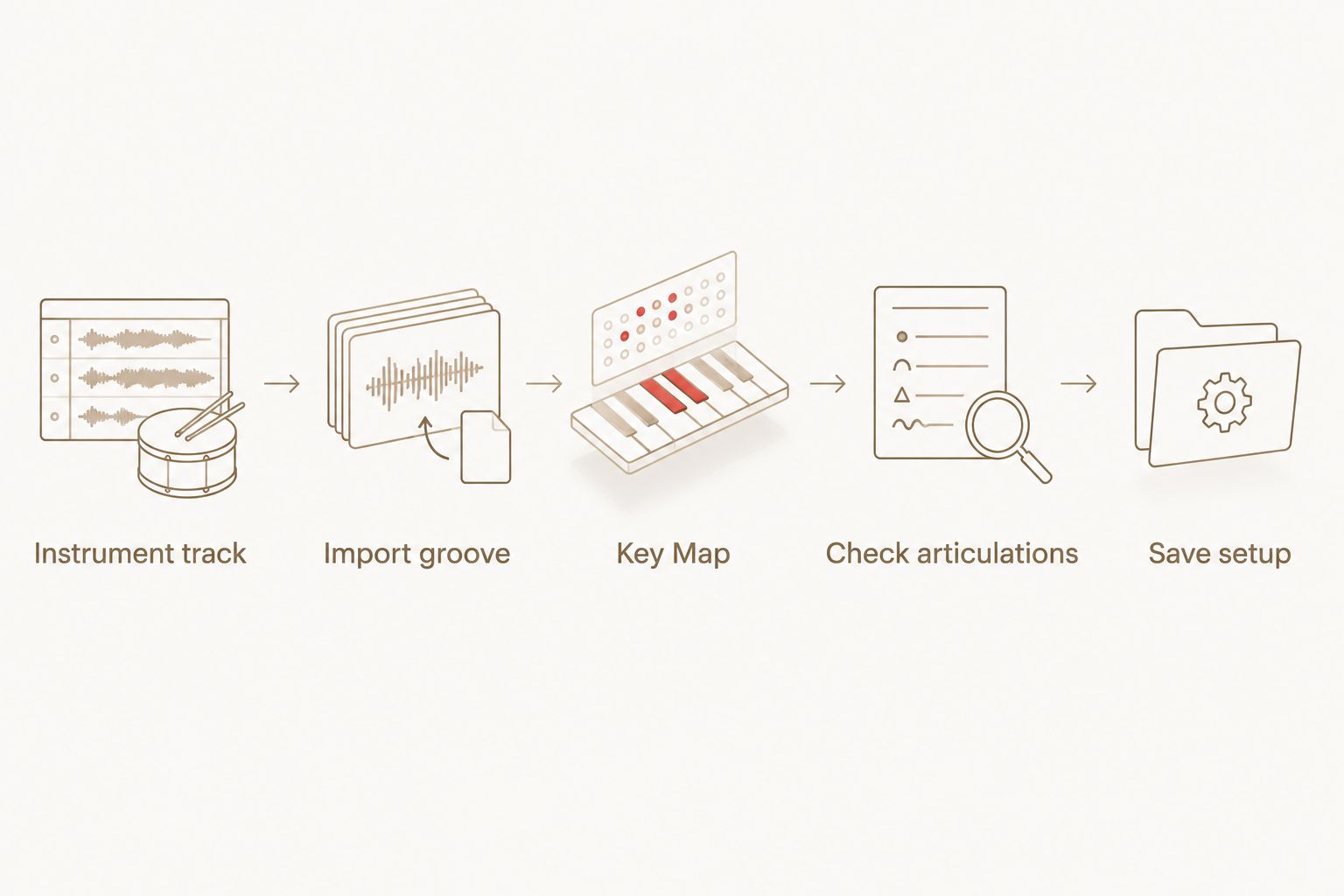
Instead of manually correcting misplaced kick, snare and cymbal hits every time you import a groove, route Oracle Sound drum MIDI to BFD3 through a checked key map so the intended parts trigger in your DAW. The connection is straightforward: put the MIDI on a track feeding BFD3, match its notes to BFD3’s articulations, then audition a fill before building the song.
- Oracle Sound drum MIDI to BFD3 works best when you verify the key map before arranging a song.
- Route the MIDI track to BFD3, then check kick, snare, hi-hat and cymbal articulations by ear.
- If notes trigger the wrong drums, remap them in BFD3 or translate the MIDI before it reaches BFD3.
- Save the working map with your DAW project or template so later grooves use the same routing.
Why this matters
A MIDI file contains note events, not drum sounds. BFD3 decides which kit piece and articulation each note plays. If the file and the loaded key map disagree, a groove can sound broken even though every note is present.
That matters most when you are auditioning heavy parts quickly. A misplaced kick changes a breakdown; a closed hi-hat note playing a different articulation changes the pulse. In 2026, the fastest way to connect Oracle Sound drum MIDI to BFD3 is to test a short section before copying grooves across an entire arrangement.
The Beatdown/Hardcore 10 Song Drum MIDI Pack is a relevant starting point for a beatdown or hardcore session. Oracle Sound drum MIDI packs are best for producers building metal, hardcore or punk parts in BFD3 who are prepared to check the note map; the files do not remove that setup step.
Before you start
- Have BFD3 available as an instrument in your DAW, a loaded BFD3 kit, and an extracted Oracle Sound MIDI pack with its MIDI files accessible from your file browser.
- Know how your DAW sends a MIDI track to an instrument track. Some DAWs place the MIDI clip directly on the BFD3 track; others require you to select BFD3 as the MIDI track’s output.
- Check the pack’s available mapping folders before dragging in a file. Do not assume a mapping named for another drum instrument matches BFD3. A groove that imports cleanly can still trigger the wrong articulations.
Use one groove with obvious kick, snare and cymbal activity as your test. It exposes mapping errors faster than a sparse intro. Keep the original MIDI file untouched so you can compare any edited copy against its source.
Set up the BFD3 instrument track
- Create an instrument track in your DAW and load BFD3 as its instrument. Open BFD3 and load the kit you want to hear.
- Confirm that a note drawn directly into the instrument track’s piano roll triggers a drum in BFD3. This separates an instrument-routing problem from a MIDI-file problem.
- Set your project tempo for the section you are arranging. Put the playhead at the intended start of the groove before importing the file.
- If you use a separate MIDI track, set its output destination to the track hosting BFD3 and confirm that the BFD3 track receives MIDI during playback. The destination control’s name depends on your DAW.
Expected result: BFD3 makes sound when you play a note from the DAW, before you import an Oracle Sound groove. If it does not, fix track routing and monitoring first; changing the key map cannot repair a track that receives no MIDI.
A reliable 2026 session template keeps the BFD3 instrument, its MIDI routing and the chosen kit together. The MIDI file supplies the performance, while BFD3 supplies the sounds. Treat those as separate parts of the setup when diagnosing silence.
Import an Oracle Sound groove
- Open the pack folder and select a MIDI file from the mapping version you intend to test. Keep track of that folder’s name; you will need it if you compare versions later.
- Drag the file onto the MIDI track that feeds BFD3, or use your DAW’s MIDI import command and assign the imported track to BFD3. Do not drop it onto an audio track.
- Place the clip at the start of a bar, then play it with BFD3 open. Watch the DAW’s MIDI activity and BFD3’s kit response while you listen.
- Audition a section with kicks, snares, hi-hats and cymbals. Listen for each part separately rather than judging the overall groove from the first playback.
Expected result: the clip plays at the project tempo and triggers recognisable drum parts in BFD3. If the MIDI activity indicator moves but the kit stays silent, check the output destination and the note range before editing the performance.
MIDI does not carry audio from an Oracle Sound pack into BFD3. It carries timing, notes and performance data for BFD3 to interpret. That distinction is why a 2026 project can show a complete-looking MIDI clip while producing the wrong kit pieces.
Configure the BFD3 key map
Open BFD3’s Key Map and compare the incoming notes with the kit pieces and articulations they trigger. A correct result is not just a kick and snare somewhere in the groove: repeated hats should stay on hats, cymbal accents should land on cymbals, and quieter hits should not turn into an unrelated drum.
- Solo a short section of the MIDI clip. Start with the kick and snare because an incorrect assignment is immediately audible in a heavy groove.
- Select a note in the DAW piano roll and identify what BFD3 plays when that note sounds. Repeat for closed hi-hat, an open-hat or other hat articulation if the groove uses one, and a cymbal accent.
- Where an incoming note reaches the wrong articulation, change its assignment in the BFD3 key map or move the note to the correct lane in a copy of the MIDI clip. Make one change at a time and replay the same section.
- Check the entire fill after the core backbeat works. Toms, cymbals and hat articulations can remain wrong even when the kick and snare sound right.
- Save the working configuration with your DAW project. If your BFD3 setup offers a way to save the key map separately, use a name that identifies the pack mapping and kit setup.
Expected result: the same test clip produces the intended drum parts on repeated playback without manual note moves each time you import another groove from that mapping folder. The key map is the connection point between Oracle Sound drum MIDI and BFD3’s sounds.
Choose where to correct mismatched notes
| Method | Best for | Advantage | Limitation |
|---|---|---|---|
| BFD3 key-map changes | Reusing grooves with the same incoming mapping | Keeps the original MIDI notes intact | The chosen BFD3 setup must remain available in the project |
| DAW piano-roll edits | Fixing an isolated note or fill | Makes the correction visible in that clip | Repeating the edit across many clips takes time |
| MIDI note translation before BFD3 | Sessions that need one incoming map converted consistently | Keeps the conversion separate from the performance | Adds another routing stage to check when troubleshooting |
For more than one groove, fix a recurring mismatch in the map or in a consistent translation stage. Edit the piano roll when the performance itself needs to change. Oracle Sound’s Drum MIDI Mapper is another product to assess for a mapping workflow, but check its stated support against your BFD3 setup before making it part of the signal chain.
These methods solve different problems. Mapping changes which BFD3 sound a note triggers; performance editing changes which notes the groove plays. In a 2026 production, keep that distinction clear when a fill sounds wrong: a tom on the wrong drum is a mapping issue, while a hit that should not be there is an arrangement issue.
Add a groove when the arrangement changes
Once the first groove works, use the same setup for a verse, chorus or breakdown rather than rebuilding the routing. This is the second workflow: add another Oracle Sound MIDI groove to an existing BFD3 project without losing the working note map.
- Duplicate your working MIDI track or place the new clip on the same track. Keep its output pointed at the BFD3 instance you already checked.
- Choose the new groove from the same mapping folder as the tested file. If you switch folders, audition the core drums again before arranging.
- Place the clip on the intended bar. Trim, duplicate or move the MIDI region in your DAW to fit the song structure; do not alter the original pack file.
- Play across the join between the old and new sections. Check cymbal accents, hat changes and any fill that leads into the next part.
Expected result: both clips trigger the same BFD3 kit and articulation assignments. You can then revise the performance in the piano roll without repeating the connection process.
For metal or hardcore songwriting, compare the new groove with the guitar rhythm before editing every note. If the kick pattern fights a palm-muted riff, move the relevant MIDI hits in a clip copy. Leave the saved key map alone when BFD3 is already triggering the correct drums.
Troubleshooting drum MIDI to BFD3
The clip is visible but BFD3 is silent. Play a note directly on the BFD3 instrument track. If that works, inspect the imported track’s MIDI output, track monitoring and any muted or disabled clip. If the direct note is silent too, check the instrument track and loaded kit before touching the MIDI file.
The kick plays, but the snare or cymbals are wrong. The file is reaching BFD3; focus on note assignments. Identify one offending note in the piano roll, find its destination in Key Map, and correct that assignment. Recheck other articulations before copying the groove across the song.
The groove changes character after switching files. Confirm that the new file came from the same mapping folder as the working file. Compare the same drum part in both clips. A file prepared for another instrument mapping can play through BFD3 while sending notes to different articulations.
A fill works until you change the BFD3 kit or setup. Reopen Key Map and audition the fill against the current kit. Keep a copy of the working project or map configuration so you can identify which change altered the response.
Notes play, but the groove starts in the wrong place. Check where the MIDI clip begins relative to the DAW bar grid. Move the region before changing individual notes; an offset clip is an arrangement-placement issue, not a BFD3 mapping issue.
Customize your workflow
Save a DAW template with a BFD3 instrument track, your tested routing and a short MIDI clip used only to check kick, snare, hats and cymbals. In a new 2026 session, play that clip first. If it still triggers the expected kit pieces, remove or mute the test clip and start arranging.
Keep separate clip copies for mapping corrections and creative edits. A mapping correction should make the same MIDI performance trigger the intended BFD3 sound; a creative edit should change the performance to serve the riff. Naming those versions clearly stops a fixed note map from being mistaken for a revised drum part.
For a heavier arrangement, try an Oracle Sound groove from a pack that fits the song’s style, then edit the imported MIDI against the guitars. For a punk or hardcore session, keep the same mapping checks even when the part is simple. Fast auditioning only saves time when the drum sounds match the notes you meant to import.
FAQ
How do I connect Oracle Sound drum MIDI to BFD3?
Import an Oracle Sound MIDI file onto a DAW track feeding BFD3, then check its notes against BFD3’s Key Map. Audition kick, snare, hats and cymbals before arranging the full song.
Why does an Oracle Sound MIDI file play the wrong drums in BFD3?
The MIDI notes and the active BFD3 key map do not match. Identify an incorrect note in the piano roll and change its destination in the map or in a copy of the clip.
Do Oracle Sound drum MIDI packs include BFD3 drum sounds?
The drum MIDI supplies performance data, while BFD3 supplies the drum sounds. Load a BFD3 kit and route the MIDI track to it to hear the groove.
Should I remap BFD3 or move notes in my DAW?
Remap BFD3 for a mismatch that repeats across grooves; edit notes in your DAW for an isolated fix or a creative performance change. Save the working configuration with the project.
Can I use a mapping intended for another drum plugin in BFD3?
You can import the MIDI, but its notes still need to match BFD3’s key map. Test the kick, snare, hats and cymbals rather than treating a successful import as proof of correct mapping.
Why is BFD3 silent when the MIDI clip is visible?
First check that the clip’s track sends MIDI to the BFD3 instrument track and that BFD3 has a loaded kit. Test a note directly on the instrument track to separate routing from note-mapping faults.
Will a saved BFD3 key map fix every MIDI groove?
A saved map fixes grooves that use the incoming note assignments it was built for. Recheck the articulations when you switch to a different mapping folder or change the BFD3 setup.
One last thing
A MIDI import is not a compatibility test. In your next 2026 BFD3 session, audition one busy fill before laying out the song: if its kick, snare, hats and cymbals all land correctly, you have tested more than the file’s ability to open.