

oracle sound amp sim pro tools: AAX Setup Wins in 2026
Instead of recording a dry guitar take, exporting it and rebuilding the tone elsewhere, install Oracle Sound’s RITUAL 2 AMP LOADER in its AAX format, insert it on a Pro Tools audio track and load a compatible NAM profile. You can then record the dry signal while hearing the processed guitar in your session.
- For an oracle sound amp sim pro tools setup, use RITUAL 2 AMP LOADER in AAX format on a guitar audio track.
- RITUAL 2 AMP LOADER is the Oracle Sound choice for Pro Tools users loading NAM profiles; a profile is not a plug-in.
- Record a dry guitar input, monitor through the insert and confirm the track output reaches your speakers or headphones.
- If the insert is missing, check the AAX installation and restart Pro Tools before changing your audio routing.
Why this matters
Pro Tools loads AAX plug-ins. RITUAL 2 AMP LOADER is supplied in AAX format for Mac and Windows, so it can sit on an audio track as an insert. A NAM tone profile is a separate file: you load the profile inside a compatible loader, not into a Pro Tools insert slot. That distinction saves you from searching the plug-in menu for a tone pack that will never appear there.
For metal, hardcore and punk sessions, keeping the DI guitar on the track also leaves the performance available for tone changes during editing and mixing. If you want the profile-loading process outside this Pro Tools guide, use the NAM profile setup guide. This guide stays focused on getting an AAX insert, a guitar input and a NAM profile working together in Pro Tools in 2026.
Before you start
- Install the AAX version of RITUAL 2 AMP LOADER. Its store description lists AAX support on both Mac and Windows. Having only its VST3 or AU version installed will not make it appear as a Pro Tools insert.
- Connect your guitar through an audio interface. Select the interface in Pro Tools and know which physical input receives the guitar. A clean DI recording gives you a source you can process again without replaying the part.
- Have a compatible NAM profile ready to locate on your computer. The loader and the tone file are different parts of the setup. Keep the profile in a folder you can find again; moving it later can break the session’s reference to it.
Gotcha before you record: hearing your interface’s direct-monitor signal does not prove you are hearing the plug-in. If the guitar stays clean when you bypass the RITUAL 2 insert, check Pro Tools input monitoring and your interface’s direct-monitor mix before you track a full take.
Set up your Pro Tools audio path
Start with a single mono guitar track. It makes the input choice and the recorded DI easy to inspect before you build a wider rhythm-guitar session.
- Connect the guitar to an instrument-capable input on your audio interface. Set the interface input for the guitar rather than assuming every socket or input mode behaves the same way.
- Open Setup > Playback Engine in Pro Tools and select the audio interface you intend to use. Confirm the change before creating or arming the track.
- Use Track > New to create a mono Audio Track. Name it for the part you are recording, such as rhythm DI, so you can identify the unprocessed performance later.
- On that track, use the Input selector to choose the interface input carrying the guitar. Use the Output selector to route the track to your monitoring output.
- Click the track’s Record Enable button and play. Watch the track meter: it should respond to your guitar before you add any amp processing.
Expected result: Pro Tools shows guitar input on the mono track meter, and the track routes to your chosen monitoring output. If the meter does not move, fix the interface input and track assignment now; an amp loader cannot process a signal it never receives.
Insert the AAX amp loader
The insert is where Pro Tools passes the recorded or live DI into RITUAL 2 AMP LOADER. Keep it on the guitar audio track, not on a MIDI track or the master output, while you confirm the basic signal path.
- On the guitar track, open an empty Insert slot and choose plug-in. Find RITUAL 2 AMP LOADER in the available plug-ins and select the version that fits the track.
- Play the guitar and check that the plug-in receives signal. If the interface offers direct monitoring, reduce or mute that direct path while checking the processed sound; otherwise you can hear a clean guitar alongside the Pro Tools output.
- Bypass the insert, then enable it again. Listen for a change between the dry path and the plug-in path rather than judging the setup by the track meter alone.
- Set a practical monitoring level at the interface and track output. If you hear distortion before choosing a tone, lower the guitar’s input level at the interface and test again.
Expected result: the same guitar performance plays through the inserted loader, and bypassing the insert changes what you hear. If the plug-in opens but the sound remains identical, check the profile-loading step next.
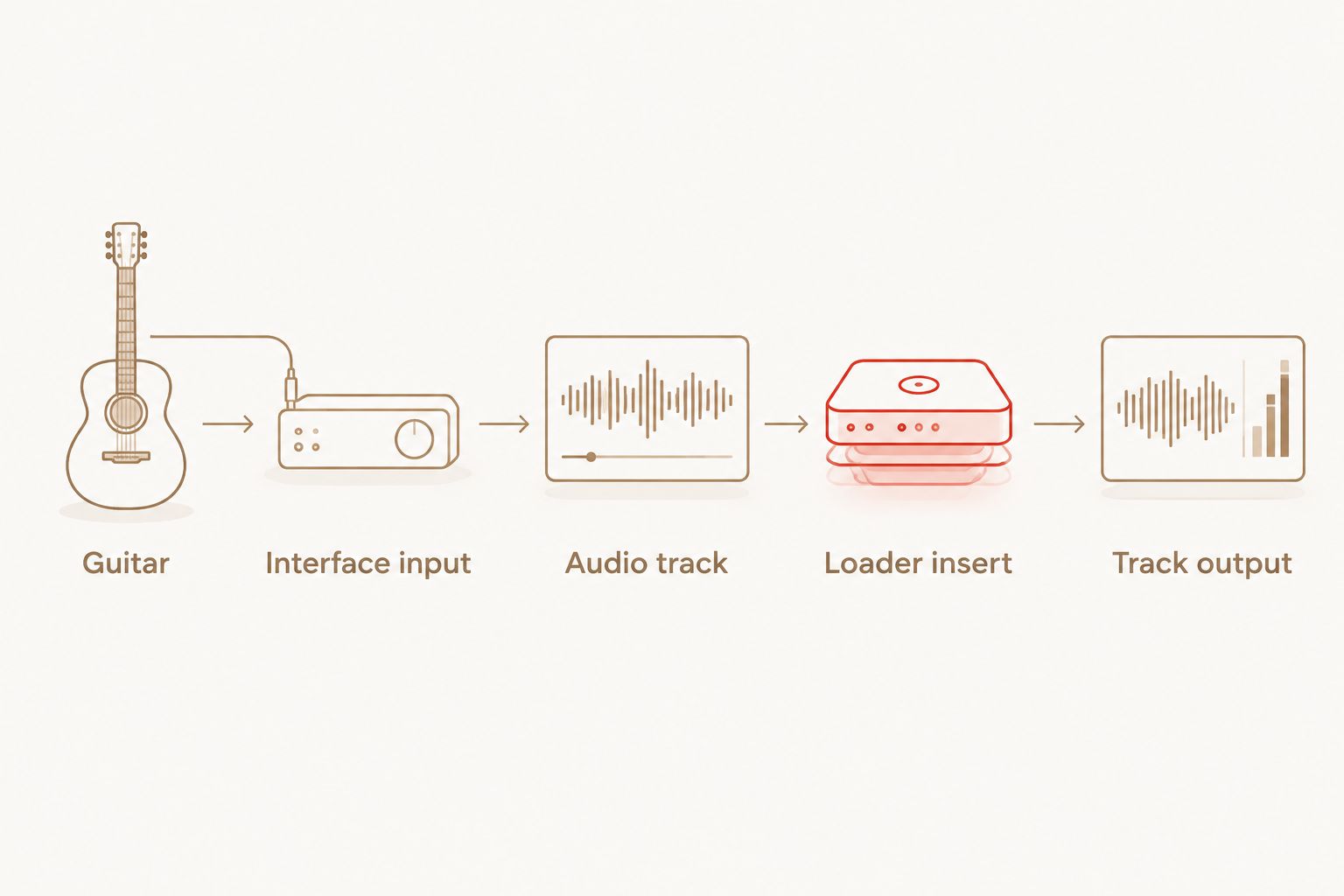
The signal-chain order is guitar, interface instrument input, Pro Tools mono audio track, RITUAL 2 insert, track output. Your DI remains on the audio track. The insert controls the sound you monitor and hear on playback; it does not require you to record a second processed take to test a different profile.
Load a NAM tone profile
A NAM profile provides the captured tone; RITUAL 2 AMP LOADER provides the AAX plug-in Pro Tools can host. Do not try to install a profile as though it were another Pro Tools plug-in. Keep the original profile files organised so the session can locate the same tone when you reopen it in 2026.
- Open the RITUAL 2 plug-in window from the guitar track’s Insert slot.
- Use the loader’s file-loading control to select a compatible NAM profile from its saved folder. The supplied inputs do not establish a fixed label for that control, so identify the file picker in the installed version rather than following a screenshot from a different build.
- Play a short palm-muted passage and a sustained note. Check that the tone changes when you select the profile and that neither passage produces unintended input clipping.
- Save the Pro Tools session. Close and reopen it, then confirm the insert and selected tone still work before tracking more guitar parts.
Expected result: the track plays through the chosen NAM profile during live monitoring and playback, and the sound returns when the session reopens. For a heavy-guitar example, Tonectomy brutal guitar tone NAM profiles are a profile-pack option; they still need a compatible loader rather than a separate Pro Tools insert.
Do your first level check with the guitar playing as hard as it will in the part. A tone that sounds controlled on a soft test strum can behave differently on fast downstrokes. Adjust the interface input before recording if the DI clips; turning down the track after recording does not repair a clipped input.
Choose the right file for the job
The three items in this setup serve different purposes. In 2026, the quickest compatibility check is to identify whether the thing you downloaded is a host plug-in, a tone file or an alternate plug-in format.
| Item | What it does in this workflow | Pro Tools action | Limitation |
|---|---|---|---|
| RITUAL 2 AMP LOADER in AAX format | Hosts the tone-processing step on the guitar track | Select it from an audio track’s plug-in inserts | It needs a guitar signal and a suitable tone selection to demonstrate the intended result. |
| NAM profile | Supplies a tone for a compatible loader | Open it from inside the loader | A profile is not an AAX plug-in and will not appear in the insert menu. |
| VST3 or AU build of a plug-in | Runs in hosts that support that build | Use the AAX build instead for this Pro Tools setup | Installing only VST3 or AU does not add an AAX insert to Pro Tools. |
Best for Pro Tools users: the AAX build of RITUAL 2 AMP LOADER paired with a compatible NAM profile. Best for changing tones after recording: a clean DI take with the loader left as an insert. The trade-off is file management: the session needs continued access to the profile you selected.
Record and check a guitar take
Once the live sound works, record a short take before building the whole arrangement. That take tests the recorded DI and the playback path separately from your live-monitoring settings.
- Leave the guitar audio track Record Enabled, place the cursor before the part and record a short passage. Include the picking strength and techniques you will use in the full take.
- Stop recording, turn off Record Enable and play the take from the timeline. Listen through the RITUAL 2 insert.
- Bypass the insert during playback. You should hear the recorded guitar without that insert’s processing; enable it again to return to the selected tone.
- Save the session and reopen it. Confirm that the recorded waveform, insert and tone all return.
Expected result: playback uses the recorded DI through the selected insert without requiring you to keep playing the guitar. If live monitoring works but playback is silent, inspect the clip, track mute state and output assignment before reinstalling anything.
For doubled heavy rhythms, record separate performances on separate audio tracks rather than copying one take and calling it a double. Keep the DI and insert relationship clear on each track. You can then compare tones against the drums without losing the ability to change either guitar’s processing.
Use the same chain on an existing DI
You do not have to record through the loader to use it. In a 2026 Pro Tools session with an existing clean guitar performance, add the AAX insert to that audio track, load the NAM profile and play the clip. This is the adjacent workflow for editing or mixing a take you recorded earlier.
- Identify the audio track that contains the clean DI. Solo it briefly to confirm you have the guitar performance rather than an already-processed print.
- Add RITUAL 2 AMP LOADER to an empty Insert slot on that track and load a compatible NAM profile.
- Play a section that includes both tight attacks and sustained notes. Compare the processed sound with the insert bypassed, then save the session.
Expected result: the existing performance takes on the selected tone without moving the clip or recording it again. This approach is best for revising a guitar tone after tracking. Its limit is the source recording: the loader cannot undo clipping or noise already captured in the DI.
Troubleshooting
RITUAL 2 does not appear in the insert menu
Confirm you installed its AAX build, then quit and restart Pro Tools. A VST3 or AU installation alone does not satisfy Pro Tools’ AAX plug-in requirement. If you installed the AAX build while the session was open, restart the application before searching the inserts again.
The track meter does not respond to the guitar
Check Setup > Playback Engine, the track’s Input selector and the physical interface input in that order. Arm the audio track and test the guitar again. A silent input meter points to the recording path, not the NAM profile.
You hear clean and processed guitar together
Check the interface’s direct-monitor path against the Pro Tools track output. When both paths reach your headphones, the clean DI can remain audible even while the loader processes the track. Listen to one monitoring path at a time when you judge the tone.
The plug-in opens, but the tone does not change
Confirm that you loaded a compatible NAM profile inside RITUAL 2, then compare the sound with the insert bypassed. Opening the loader is not the same as selecting a tone file. Also check that you inserted it on the audio track carrying the guitar.
The session reopens without the expected tone
Check whether the NAM profile was moved, renamed or removed after you selected it. Restore access to the original file and select it again in the loader if needed. Keep the tone files used by a project in a stable location before you archive the session.
Customize your workflow
Build a small, repeatable Pro Tools template once the single-track test passes: name your DI tracks clearly, leave the AAX loader on the appropriate audio tracks and verify each input assignment when you connect an interface. Keep the NAM profile files with your organised project materials so you can identify the tone used when you revisit a 2026 mix.
For metal or hardcore writing, test a tone against the drum part rather than soloing guitar indefinitely. Tight palm mutes need to read alongside the kick, while sustained chords need room beside cymbals and bass. Change the guitar tone in context, then play the saved session from the start to confirm the result.
FAQ
How do I use an Oracle Sound amp sim in Pro Tools?
Install the AAX version of RITUAL 2 AMP LOADER, insert it on a guitar audio track and load a compatible NAM profile inside it. Route a guitar input to that track and confirm you hear the processed signal.
Does RITUAL 2 AMP LOADER work with Pro Tools on Mac and Windows?
RITUAL 2 AMP LOADER lists an AAX build for both Mac and Windows. Pro Tools requires that AAX build for this insert workflow.
Can I insert an Oracle Sound NAM profile directly into Pro Tools?
No. A NAM profile is a tone file, not an AAX plug-in; open it inside a compatible loader inserted on the guitar audio track.
Why can’t I find RITUAL 2 in my Pro Tools plug-in list?
Check that its AAX build is installed, then restart Pro Tools. Installing only a VST3 or AU build will not make it available as a Pro Tools AAX insert.
Should I record a dry guitar track or a processed track?
Record a clean DI guitar track when you want to change the inserted tone after tracking. Monitor through the loader, then check that the recorded take plays back through the same insert.
Can I add the amp loader to a guitar take I already recorded?
Yes. Insert RITUAL 2 AMP LOADER on the audio track containing the existing DI, load a compatible NAM profile and play the take through it.
Why do I hear a clean guitar under the processed tone?
Your interface’s direct-monitor path can play the clean input alongside Pro Tools’ processed output. Check the interface monitor mix and listen to one path while you assess the insert.
One last thing
Save, close and reopen the session before the full tracking pass. A tone that works only while its source file is still in a temporary location is not a dependable session setup. In 2026, the useful test is whether Pro Tools plays the same DI through the same profile after a restart.