

Do you need an audio interface for amp sim plugins?
Yes—if you want to play a guitar through amp sim plugins in real time, you need an audio interface or another device that provides a suitable guitar input and digital audio connection. You do not need a separate interface to process an already-recorded DI track, and a USB-equipped modeller can replace one when it supports audio input and output. In 2026, the deciding factors are the input connection, driver performance and monitoring path—not the amp sim's name.
- Do you need an audio interface for amp sim plugins? Yes for live guitar input; no for processing recorded DI tracks.
- A USB modeller can replace a separate interface when it provides suitable guitar input and audio routing.
- Monitor through the amp sim to hear distortion; direct monitoring normally gives you the unprocessed input.
- Oracle Sound NAM profiles shape guitar tone after capture; they do not replace an audio interface.
Why this matters
A breakdown needs a clear pick attack, not a delayed response or a clipped guitar input. An amp sim processes the signal it receives; it cannot restore a clean DI after the analogue input has overloaded.
Fix the input and monitoring path before changing tones. Once that works, the guide to connecting amp sims to Pro Tools covers the next stage of a DAW-based setup.
Do you need an audio interface for amp sim plugins?
You need hardware that converts your guitar's analogue output into digital audio. A separate USB interface is the straightforward route, but it is not the only route. The distinction is between needing an audio-input function and needing another box.
For a 2026 recording setup, choose by the job you need the device to perform:
| Input route | Separate interface needed? | Best for | Advantage | Limitation |
|---|---|---|---|---|
| Interface with an instrument input | Yes—this is your interface | Recording live guitar into a DAW | Guitar input, recording and monitoring in one device | Requires driver and routing setup |
| USB guitar input device | Not necessarily | A compact guitar-only setup | Converts the guitar signal directly | Monitoring outputs and driver features vary |
| USB-equipped modeller | Not necessarily | Using hardware you already own | Can provide guitar input and computer audio | Must support the required USB routing; check its manual |
| Computer mic input with a passive adaptor | Not a suitable default | Not recommended for passive guitar recording | Uses an existing connection | The adaptor does not provide appropriate input impedance or guaranteed signal handling |
| Previously recorded DI file | No new input hardware required | Editing and software reamping | Lets you change the amp tone after recording | Cannot capture a new guitar performance |
For live tracking, use an instrument-capable interface or a verified USB alternative. For software reamping, load the recorded DI into your DAW and insert the amp sim on that track.
An ordinary USB cable does not turn an analogue guitar into a USB audio device. A USB guitar cable that contains conversion electronics is different: it includes audio-interface functionality, even if it does not look like a desktop interface.
Live guitar: use an instrument input
Plug a passive guitar into an input labelled Instrument, Inst or Hi-Z, following the device's instructions. A microphone input and a line input are not automatically interchangeable with an instrument input.
Passive pickups interact with the input impedance. An unsuitable input changes the signal before the amp sim receives it, so turning up distortion is not a substitute for the correct connection.
Set the hardware input gain while playing your hardest palm mutes and loudest chords. Keep the recorded input below 0 dBFS, the digital full-scale ceiling. Do not aim to fill the meter just because the part sounds quiet before processing.
With 24-bit recording, you do not need to crowd the clipping point to capture a usable DI. Leave headroom, then use the amp sim's input control according to its instructions. Hardware input gain and plugin input level perform different jobs.
Active pickups do not remove the need to check the input specification. Use the device's recommended input mode and engage a pad only when the input requires it.
Existing DI tracks: no separate interface needed
A recorded DI is already digital audio. Your DAW can send that file through an amp sim without converting a new guitar performance.
That makes software reamping useful for metal and hardcore sessions: preserve the performance while changing distortion, cabinet processing or EQ. You still need a working playback device to hear the result, but it does not have to provide a guitar input.
Keep the original DI untouched. Put the amp processing on the playback track or a separate processing channel, and save the session before committing an edited tone.
Check the source file first. An apparently clean waveform can still contain noise, overloaded transients or distortion recorded upstream. A different profile changes the tone; it does not reconstruct the original pickup signal.
USB modellers: check the dry-signal routing
A modeller replaces a separate interface only when it supports the audio connections your session needs. USB might carry audio, control data or both; the connector alone does not establish its recording capabilities.
Read the routing section of the hardware manual. For amp sim tracking, look for a dry guitar signal that reaches the computer independently of the modeller's processed sound.
If the USB input already includes amp distortion and cabinet processing, another amp sim processes that finished sound. That is an effect choice, not the same workflow as feeding a clean DI into software.
Check monitoring too. Hearing the modeller's hardware tone while recording its DI is different from hearing the computer's amp sim. Decide which sound you want under your fingers before recording the take.
Why amp sim latency and tone vary
The interface affects capture and monitoring, but it does not determine the entire result. These factors explain why identical plugins behave differently across recording setups:
- Input mode and gain: the guitar needs a suitable input, with enough headroom for the loudest playing.
- Audio buffer: a larger buffer gives the computer more processing time but increases the buffer's contribution to monitoring delay.
- Driver and device routing: the selected audio system determines how the DAW receives and returns audio.
- Plugin processing: look-ahead, oversampling and other processing modes can add workload or latency.
- Monitoring path: direct input, DAW monitoring and wireless playback introduce different listening paths.
- Session workload: other instruments and effects compete for the computer resources needed during tracking.
Change one variable at a time. If the guitar feels late, test the monitoring path and buffer before assuming the tone pack is responsible.
How do you connect a guitar to an amp sim?
Build the basic signal chain before adding gates, boosts or mix processing. For your 2026 tracking template, make the input path easy to inspect:
- Guitar input: connect the guitar to the device's instrument input and select the correct input mode.
- Input gain: play the loudest passage and reduce hardware gain if the input clips.
- Mono DI: create a mono audio track, select the guitar input and enable recording.
- Amp processing: insert the amp sim or NAM loader, then select the tone you want to use.
- Cabinet stage: add cabinet processing if the selected amp tone does not already include it.
- Wired monitoring: enable DAW input monitoring and listen through the chosen audio device.
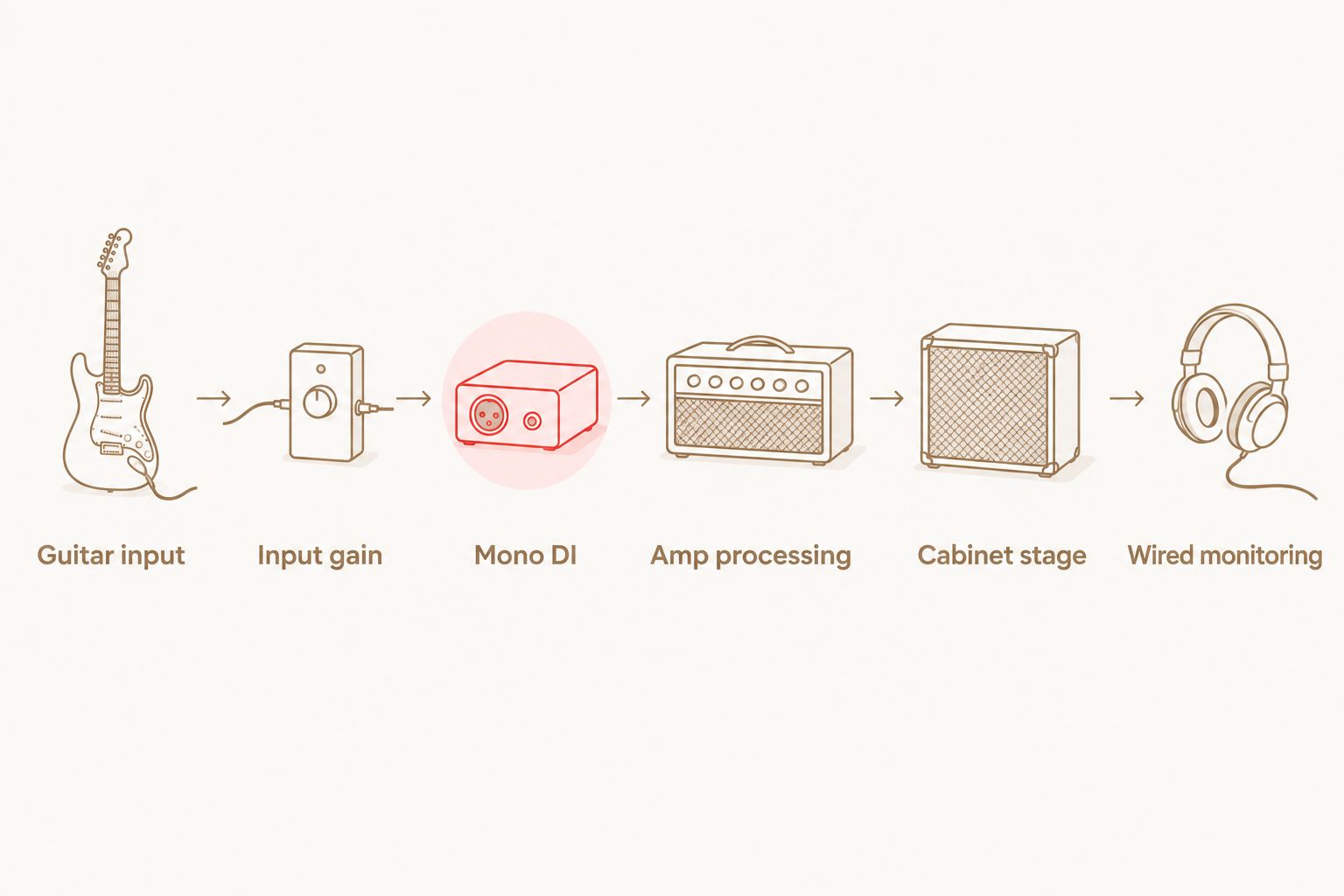
Record a short test, then play it back. Confirm that the recorded file is the dry guitar signal and that the amp tone comes from the track's processing—not an additional hardware path.
For a high-gain example, Oracle Sound's VIC AUDIO METAL 2 NAM provides DI amp captures, pedal captures and cab IRs. Best for: metal producers who want NAM-format guitar tones in a loader-based signal chain. The limitation is the same as any profile pack: it does not provide the guitar input, audio driver or monitoring hardware.
Oracle Sound NAM profiles are best for producers shaping recorded guitar DI into metal tones, not replacing recording hardware. Use the pack's documentation to identify the required loader format and cabinet stage before building the chain.
How do you reduce delay while playing?
Start by confirming that you are hearing the DAW's processed output. Direct monitoring normally bypasses the plugin, so it delivers the input signal without the software amp tone.
Disable the dry direct-monitor path when you want only the amp sim in your headphones. Hearing dry and processed guitar together can make the attack sound doubled or indistinct.
Use the interface manufacturer's recommended driver. On Windows, that commonly means its ASIO driver; on macOS, audio devices normally operate through Core Audio. Select the intended device in the DAW rather than assuming the operating system's playback choice applies.
A 128-sample buffer is a practical starting point for testing, not a promised latency result. Lower it if the response needs improvement and the session remains stable; raise it if playback crackles or drops out.
Keep the sample rate consistent across the device and session. 48 kHz is a standard recording option, not a requirement for every amp sim. Reported round-trip latency also includes conversion, drivers and processing—not just the buffer setting.
Use wired headphones or speakers for tracking. Bluetooth adds another latency path, which makes it a poor default for judging real-time guitar response.
What should you check before buying another interface?
For a 2026 purchase, inspect capabilities rather than assuming newer hardware will fix a routing problem:
- Instrument input: verify that it supports your guitar connection.
- Driver support: check your operating system and the manufacturer's current documentation.
- Headphone output: confirm you can hear the DAW's processed signal through the device.
- Input channels: choose for the sources you actually record, including simultaneous instruments or microphones.
- Monitoring controls: understand how to separate direct input from software playback.
More channels do not automatically improve a guitar DI. Equally, a device that records cleanly still needs suitable driver performance for comfortable software monitoring.
Before replacing hardware, test a small session with only the guitar track and amp processing. If that works but the full mix does not, investigate session workload and plugin latency first.
FAQ
Can I use amp sim plugins without an audio interface?
Yes, you can process recorded DI audio without a separate interface. To play a guitar through the plugin live, you need suitable input hardware, whether that is an interface, USB guitar device or supported USB modeller.
Can I plug my guitar straight into my laptop?
Not through an ordinary headphone socket or a passive cable adaptor as a suitable default. Use hardware that accepts the guitar signal and converts it to digital audio.
Does direct monitoring let me hear my amp sim?
Direct monitoring normally gives you the input before the DAW's amp sim processing. Enable software monitoring to hear the plugin, and disable the dry monitoring path if you do not want both signals.
Will a better audio interface make an amp sim sound better?
A suitable interface improves the recording path when the existing input clips, adds noise or is poorly matched to the guitar. It does not automatically improve the amp model, cabinet choice or performance.
Can a USB modeller replace an audio interface?
Yes, when the modeller supports the required USB audio input, output and monitoring. Check whether it sends a dry DI, a processed signal or selectable routing to the computer.
Do I need an audio interface for Oracle Sound NAM profiles?
You need suitable input hardware to play live guitar through Oracle Sound NAM profiles, but not to process an existing DI file. The profiles run in a compatible loader rather than providing audio conversion themselves.
What buffer should I use for amp sim tracking in 2026?
Start by testing a 128-sample buffer, then adjust for stable playback and an acceptable response. That setting does not guarantee a particular round-trip latency because drivers, conversion and plugins also contribute.
One last thing
Your recorded DI does not need to contain the distorted tone you hear while playing. Monitoring through an amp sim and recording the clean input lets you keep the performance while revisiting the sound later.
Before tracking a full song, bypass the amp processing on playback. If the recording turns clean, you have preserved the DI. If it stays distorted, inspect the hardware routing and recording source before committing another take.